Cron job not running? Check these 11 things, in order
The script works when you run it by hand and does nothing from crontab. A checklist that starts with the one question that halves the search: did cron even try?
12 min read
You wrote a script. You ran it, it worked. You added a line to your crontab, waited, and nothing happened. No error, no output, no file where the file should be.
Cron is not going to tell you why. It has no status command and no history, and its error reporting is an email to a mailbox your server probably doesn’t have. So you have to work it out from the outside, and the fastest way is to split the problem in half first.
PATHShort answer
Check cron’s log first: grep CRON /var/log/syslog, or journalctl -u cron on Debian 12 and newer.
If there’s no CMD line for your job, the problem is cron itself, the schedule, or the crontab file
(steps 2 to 5). If there is one, the job ran and failed, almost always because of PATH, /bin/sh,
the working directory, or an unescaped % (steps 6 to 9), and the error was thrown away because
there’s no mail server (step 10). To avoid debugging blind next time, run your jobs under something
that records each run’s output: systemd timers, or RunWisp, which takes over an existing crontab in
one command.
Is there a CMD line for your job in cron's log? (step 1)
No: cron never started it
- Is cron running? Docker: usually not
- Right crontab? 5 places, 2 formats
- Dot in the file name?
backup.shis skipped - Schedule wrong? OR'd days, UTC
Yes: it started and failed
- Environment
PATH,/bin/sh, no profile %in the line escape it- Working directory it's
$HOME - Permissions, CRLF "not found" lies
- Output discarded no MTA
- Still running overlap
Got an error message? Jump straight to it
Every message below is real: we ran each broken job under cron’s /bin/sh (dash, on Ubuntu 26.04)
and copied what it printed.
| You see | What it means | Step |
|---|---|---|
| nothing in the log at all | cron never matched the job | 2–5 |
(CRON) info (No MTA installed, discarding output) | the job printed something and it was thrown away | 10 |
/bin/sh: 1: node: not found | the command isn’t on cron’s PATH | 6 |
/bin/sh: 1: source: not found | bash syntax, run by dash | 6 |
/bin/sh: 1: [[: not found | same | 6 |
/bin/sh: 1: Syntax error: "(" unexpected | a bash array, run by dash | 6 |
Syntax error: end of file unexpected (expecting ")") | an unescaped % cut the line short | 7 |
cat: ./config.yml: No such file or directory | relative path, wrong working directory | 8 |
/bin/sh: 1: …/backup.sh: Permission denied | no executable bit | 9 |
/bin/sh: 1: …/backup.sh: not found (file exists) | Windows line endings | 9 |
1. Did cron even try?
Every other step depends on this one. Cron logs a line each time it starts a job, and that line tells you which half of the list to read.
# Ubuntu, and Debian up to 11
grep CRON /var/log/syslog | tail -20

# Debian 12 and newer (no rsyslog by default)
journalctl -u cron --since "1 hour ago"

# RHEL, Fedora, Rocky, Alma
journalctl -u crond --since "1 hour ago"   # or: tail /var/log/cron
Here’s a real run, from the test box we used for this post. Four lines for one job, and the one you care about is the second:
CRON[532482]: pam_unix(cron:session): session opened for user riki137(uid=1000) by riki137(uid=0)
CRON[532484]: (riki137) CMD (env > /tmp/cronlab/env.txt; pwd > /tmp/cronlab/pwd.txt; echo "hello from cron")
CRON[532482]: (CRON) info (No MTA installed, discarding output)
CRON[532482]: pam_unix(cron:session): session closed for user riki137
Which half are you in?
- There's a
CMDline for your job: cron did its part. The job started and then failed. Skip to step 6. - There's no line at all: cron never matched your job to the clock. The problem is the daemon, the schedule, or the file the job is in. Keep reading from step 2.
- The log is empty for every job: that's step 2 too.
2. Is cron running?
systemctl status cron    # Debian, Ubuntu
systemctl status crond   # RHEL family
On a normal server this is almost always fine. The place it isn’t is a container. A Docker image
with cron installed does not run cron, because nothing starts it. The container runs your app as
PID 1, and cron sits on disk doing nothing. You need to start it yourself (cron -f as the command,
or in an entrypoint), or run the scheduler as a separate service. We went through the options in
Docker Compose cron jobs with a web UI.
3. Did you edit the crontab you think you edited?
There are five places a cron job can live, and they have different rules:
| Where | Edited with | Has a user column? |
|---|---|---|
| Your user crontab | crontab -e | ✗ |
| Root’s crontab | sudo crontab -e | ✗ |
/etc/crontab | a text editor, as root | ✓ |
/etc/cron.d/* | a text editor, as root | ✓ |
/etc/cron.{hourly,daily,weekly}/* | drop an executable there | ✗ (runs as root) |
The classic mistake is copying a line from crontab -e into /etc/cron.d/ without adding the user:
# /etc/cron.d/backup
0 3 * * * /usr/local/bin/backup.sh          # ✗ cron reads "/usr/local/bin/backup.sh" as the user
0 3 * * * root /usr/local/bin/backup.sh     # ✓
Cron finds no such user and skips the line. Check crontab -l and sudo crontab -l to see which
one actually has your job.
4. Debian ignores files with a dot in the name
This one has wasted more afternoons than any other item on the list. On Debian and Ubuntu, the
/etc/cron.daily style directories are run by run-parts, and run-parts skips any file whose
name contains a dot. Your backup.sh is invisible. Rename it to backup.
The same naming rule applies to files in /etc/cron.d/: myapp.cron is ignored, myapp is read.
Files there also need to be owned by root and not writable by group or others.
run-parts --test /etc/cron.daily # lists what would actually runWhile you’re in /etc/cron.d/: if the last line of a file has no newline after it, some cron
versions ignore that line. crontab -e refuses to save a file like that, but a hand-edited file
gets no warning.
5. Your schedule doesn’t mean what you think
Paste your expression into a cron expression checker before you trust it, and pick the scheduler that will run it. Two traps that a plain explainer won’t always catch:
Day of month and day of week are OR’d, not AND’d. If both fields are restricted, the job runs when either matches:
# Meant: "first Monday of the month". Actually: days 1-7, AND every Monday.
0 9 1-7 * 1   /usr/local/bin/report
In October 2026 that line fires on ten days instead of one: the 1st to the 7th, plus the 12th, 19th
and 26th. Cron can’t express “first Monday” on
its own. Run it on days 1-7 and check the weekday inside the command:
[ "$(date +\%u)" = 1 ] && /usr/local/bin/report.
The server is in UTC. 0 9 * * * fires at 09:00 server time. Most VPS images and every
container default to UTC, so your 9 AM job runs at 11 AM in Berlin in summer. Check with
timedatectl or date. If you change the system timezone, restart cron afterwards, since some
cron daemons read it only at startup. And if you schedule anything between 01:00 and 03:59 local
time, read what daylight saving time does to it.
6. The environment is not your shell
If step 1 showed a CMD line, this is where your answer usually is. Cron does not log you in. Here’s
the entire environment our test job got, captured with env from a crontab on Ubuntu 26.04:
HOME=/home/riki137
LOGNAME=riki137
PATH=/usr/local/sbin:/usr/local/bin:/usr/sbin:/usr/bin:/sbin:/bin:/usr/games:/usr/local/games:/snap/bin
LANG=en_US.UTF-8
SHELL=/bin/sh
PWD=/home/riki137
Six variables (run env | wc -l in your own shell to compare). What’s missing is the problem:
| Your shell | Cron | |
|---|---|---|
| Shell | bash or zsh | /bin/sh, which is dash on Debian and Ubuntu |
PATH | everything you added | /usr/bin:/bin on Debian and Ubuntu up to 24.04 |
~/.bashrc, ~/.profile | loaded | never |
nvm, pyenv, venvs | on PATH | not found |
| Exported API keys | set | missing |
| Working directory | wherever you cd’d to | $HOME |
Ubuntu changed PATH in 25.04
Since 25.04, Ubuntu starts cron with -P, so jobs inherit the PATH from /etc/environment (that's the long line above), and /usr/local/bin works. Debian, and Ubuntu 24.04 LTS and older, still hand jobs PATH=/usr/bin:/bin. A crontab that works on a new laptop can still break on the server.
And dash is not bash. Some bash-isms fail loudly, one fails silently:
$ /bin/sh -c 'source ~/.bashrc'
/bin/sh: 1: source: not found
$ /bin/sh -c '[[ -f /etc/passwd ]] && echo yes'
/bin/sh: 1: [[: not found
$ /bin/sh -c 'a=(x y)'
/bin/sh: 1: Syntax error: "(" unexpected
$ /bin/sh -c 'for i in {1..3}; do echo $i; done'
{1..3}
That last one exits 0. The loop runs once, over the literal string {1..3}.
You can reproduce cron’s environment exactly, which beats guessing:
env -i HOME="$HOME" LOGNAME="$USER" PATH=/usr/bin:/bin SHELL=/bin/sh \
    /bin/sh -c '/home/deploy/bin/backup.sh'
If that fails the same way cron does, you’ve found it. Fix it with absolute paths, or by setting variables at the top of the crontab:
SHELL=/bin/bash
PATH=/usr/local/bin:/usr/bin:/bin

0 3 * * * /home/deploy/bin/backup.sh
7. % is a special character
In a crontab, an unescaped % ends the command, and everything after it is fed to the command on
stdin. This line:
0 3 * * * tar czf /backups/site-$(date +%F).tar.gz /var/wwwruns tar czf /backups/site-$(date + and fails:
/bin/sh: 1: Syntax error: end of file unexpected (expecting ")")Escape every % as \%, or (better) move the command into a script, where % is just a
character.
8. The working directory is your home
Cron starts the job in the user’s home directory (see PWD in the capture above), not in the
directory the script lives in. A script that reads ./config.yml or writes logs/out.txt works
when you cd into its folder and run it, and fails from cron with
cat: ./config.yml: No such file or directory. cd at the top of the script, or use absolute paths
throughout:
#!/bin/sh
cd "$(dirname "$0")" || exit 1
9. Permissions, shebangs, and Windows line endings
A script called directly (/home/deploy/bin/backup.sh, not sh backup.sh) needs three things:
| Check | Fix | What cron prints when it’s wrong |
|---|---|---|
| Executable bit | chmod +x backup.sh | /bin/sh: 1: …/backup.sh: Permission denied |
| A shebang | #!/usr/bin/env bash on line 1 | nothing: it runs under dash, then step 6’s errors |
| Unix line ends | sed -i 's/\r$//' backup.sh | /bin/sh: 1: …/backup.sh: not found |
The last row is the nasty one. A script saved on Windows starts with #!/bin/bash\r, and there’s no
interpreter called bash\r. Run it from your bash prompt and you get a clear
/bin/bash^M: bad interpreter. Run it from cron, where dash does the launching, and you get
not found, for a file that is right there. file backup.sh says with CRLF line terminators if
that’s you.
Also check which user the job runs as. A job in root’s crontab writes files owned by root, and the next run from your user crontab can’t overwrite them.
10. It ran, failed, and the error went nowhere
By default, cron emails a job’s output to its owner. Most servers don’t have a mail transfer agent, so cron logs this and throws the output away:
CRON[48211]: (CRON) info (No MTA installed, discarding output)If you see that line, your job printed an error and you’ll never read it. Capture it in a file for now:
0 3 * * * /home/deploy/bin/backup.sh >> /var/log/backup.log 2>&1The order matters: >> file 2>&1 sends both streams to the file, while 2>&1 >> file sends errors
to where stdout used to point, which is nowhere useful.
11. It’s still running from last time
If the job’s last run never finished (a hung network call, a lock it’s waiting on), it can look like
the new one “didn’t run”. ps aux | grep backup shows you. Cron happily starts a second copy on top
of the first, which brings its own problems. We wrote up
how to stop cron jobs from overlapping separately.
The part nobody wants to hear
Look back at that list. Almost none of it is about scheduling. It’s about cron not keeping a record
of what it did. Steps 1, 10, and 11 are all “find out what happened”, and you’re doing it with
grep because there’s no other way to ask.
Once your job works, decide how you’ll find out the next time it breaks. The minimum is the
>> file 2>&1 redirect from step 10, plus some way to hear about a failure. We compared the options
in how to get alerted when a cron job fails.
If you’d rather not assemble that yourself: systemd timers log every run to the journal, and
systemctl list-timers shows when each one last ran. RunWisp (our project) goes further. It’s an
open-source cron replacement that ships as a single binary. Each job is a few lines of TOML that
keep its cron schedule, and every run’s exit code and output is kept and shown in a web UI and a
terminal UI, with failure alerts to Slack, ntfy, email and the like.
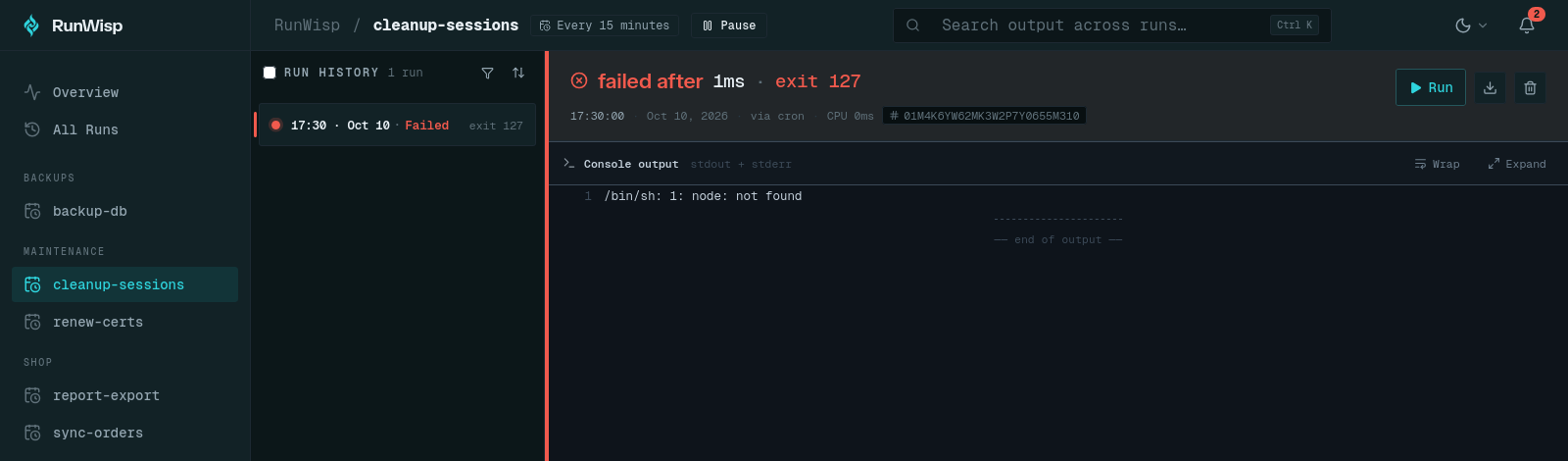
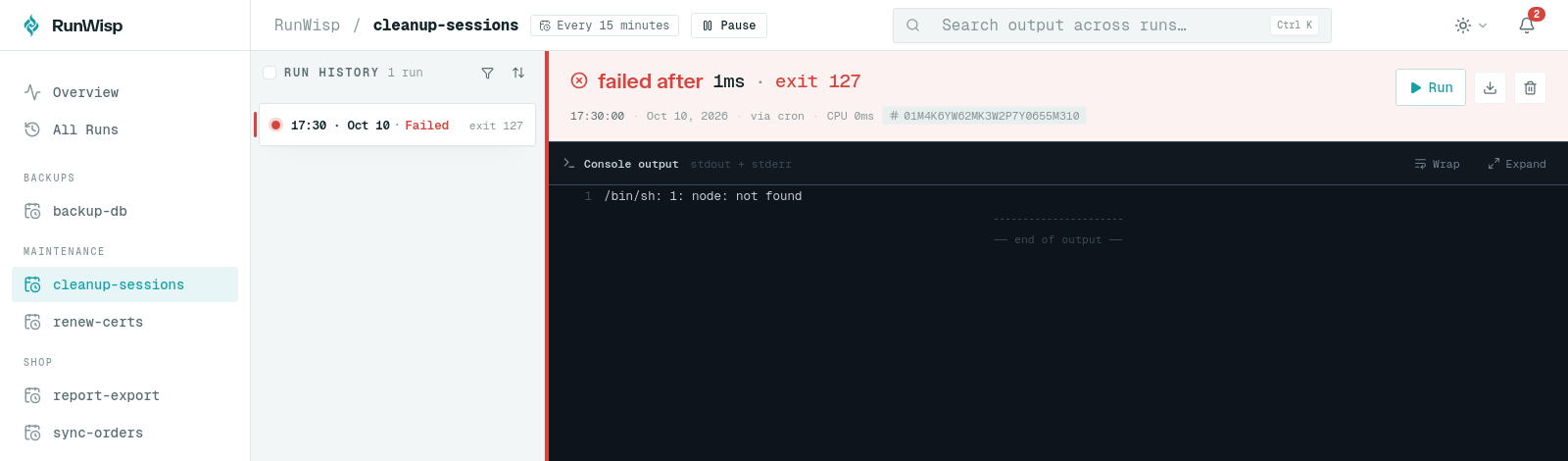
One honest caveat: it runs jobs with /bin/sh and its service’s environment, not your login shell’s,
so most of step 6 still applies. The difference is that the error is on screen instead of discarded.
Common questions
Why does my script work manually but not in cron?
How do I check if cron ran my job?
Where does cron output go?
Why is the % sign breaking my cron job?
Why don't my scripts in /etc/cron.daily run?
Do I need to restart cron after editing the crontab?
How can I see the history and output of my cron jobs?
Read next
-
Ubuntu 26.04 Rust coreutils (uutils) vs GNU: what changes for cron and shell scripts
Which uutils commands behave differently from GNU coreutils on Ubuntu 26.04 and 26.10, tested on 567 commands: mkdir locks, mv and mtime, timeout, date and DST, df, chown. How to check which you have and how to use GNU instead.
-
Debian cron vs cronie vs BusyBox crond: CRON_TZ, /etc/cron.d, env vars and syntax compared
How cron differs on Ubuntu, Debian, Fedora, RHEL, Arch and Alpine: which crons support CRON_TZ, read /etc/cron.d, pass Docker env vars, handle a bad crontab line, and accept seconds, L, W and #. Tested on six distros.