Docker Compose cron jobs with a web UI: 4 approaches
Four ways to schedule jobs in a docker-compose stack, why three of them fail silently, and how to get a dashboard that shows every run's exit code and output.
11 min read
Here is the line most people end up with. It lives in the host crontab, on the box that runs the stack:
0 3 * * * cd /srv/acme && docker compose exec -T db pg_dump -U postgres acme | gzip > /backups/db.sql.gzIt works. Right up until it doesn’t.
One night the db container is restarting when 3 AM comes around. docker compose exec exits 1,
cron dutifully mails the error to the local user, there is no MTA on the box, and the mail goes into
a spool file nobody has ever opened. Your backup directory keeps the file from the night before, and
ls -la looks fine at a glance because there is a file there. You find out eleven days later, for
the usual reason.
The scheduling was never the hard part. Cron is very good at firing things at 3 AM. The hard part is that a container stack has no obvious place to put “what happened when it fired.”
The four options, and what each one costs
| Approach | Schedule in your repo | Run history | Per-run output | Failure alerts | Web UI |
|---|---|---|---|---|---|
| crond in the app image | ✗ | ✗ | ✗ | ✗ | ✗ |
| Host crontab | ✗ | ✗ | ✗ | ✗ | ✗ |
| Cron sidecar container | ✓ | ✗ | ✗ | ✗ | ✗ |
| Ofelia labels | ✓ | ✗ | ✗ | ✗ | ✗ |
The five columns are the reasons this article exists. Every approach schedules fine and then drops most of the rest on the floor. The detail on each:
crond inside the app image. Now your container runs two processes, so you need an init system or a supervisor to keep PID 1 honest. Job output goes to the container’s mail spool (which doesn’t exist) or to a file inside a layer that vanishes on the next deploy. Rebuilding the image to change a schedule is a rough trade.
Host crontab calling into the stack. The example above. Simple and it works, but the schedule now lives outside the compose file, so it doesn’t come along when you move hosts, and it’s invisible to anyone reading the repo. Silent on failure by default.
A cron sidecar container with a crontab bind-mounted in. Better (the schedule is in the repo
now), but the output problem is identical. You still have to go read docker logs and hope the
lines you want haven’t rotated away.
Ofelia labels. Genuinely nice if your whole world is compose. Three labels on a service and it runs. But there is no run history, no retries, no captured output per firing. When someone asks “did the backup run on the 14th,” you can’t answer.
All four schedule fine. None of them answer the question you actually have.
What “with a web UI” should mean
Not a dashboard for the sake of a dashboard. Three concrete things:
- Every firing is a row: start time, duration, exit code, and the stdout and stderr it produced.
- A button that runs the job right now, so you stop SSH-ing in to test a cron expression.
- Something that tells you when it broke, without you asking.
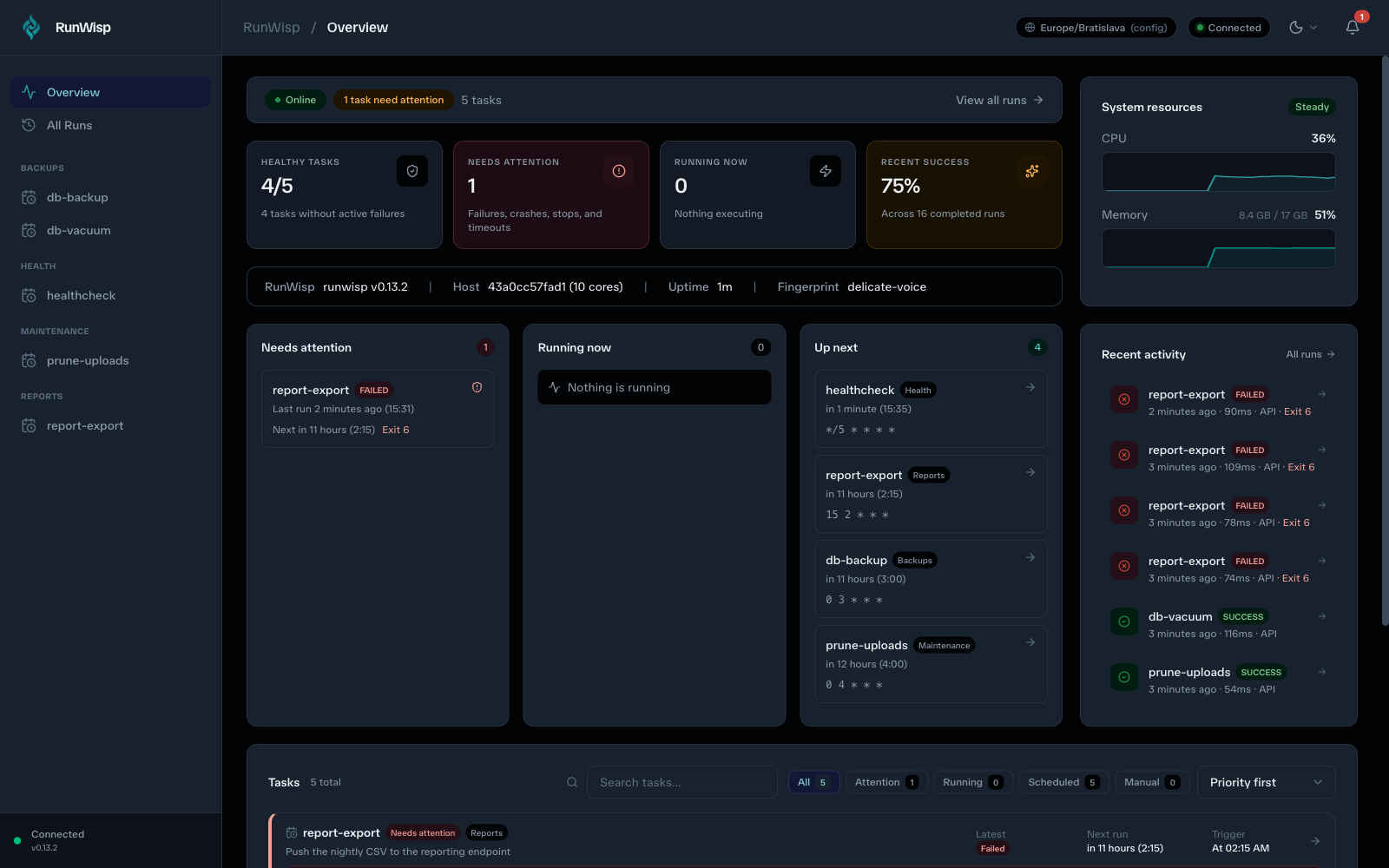
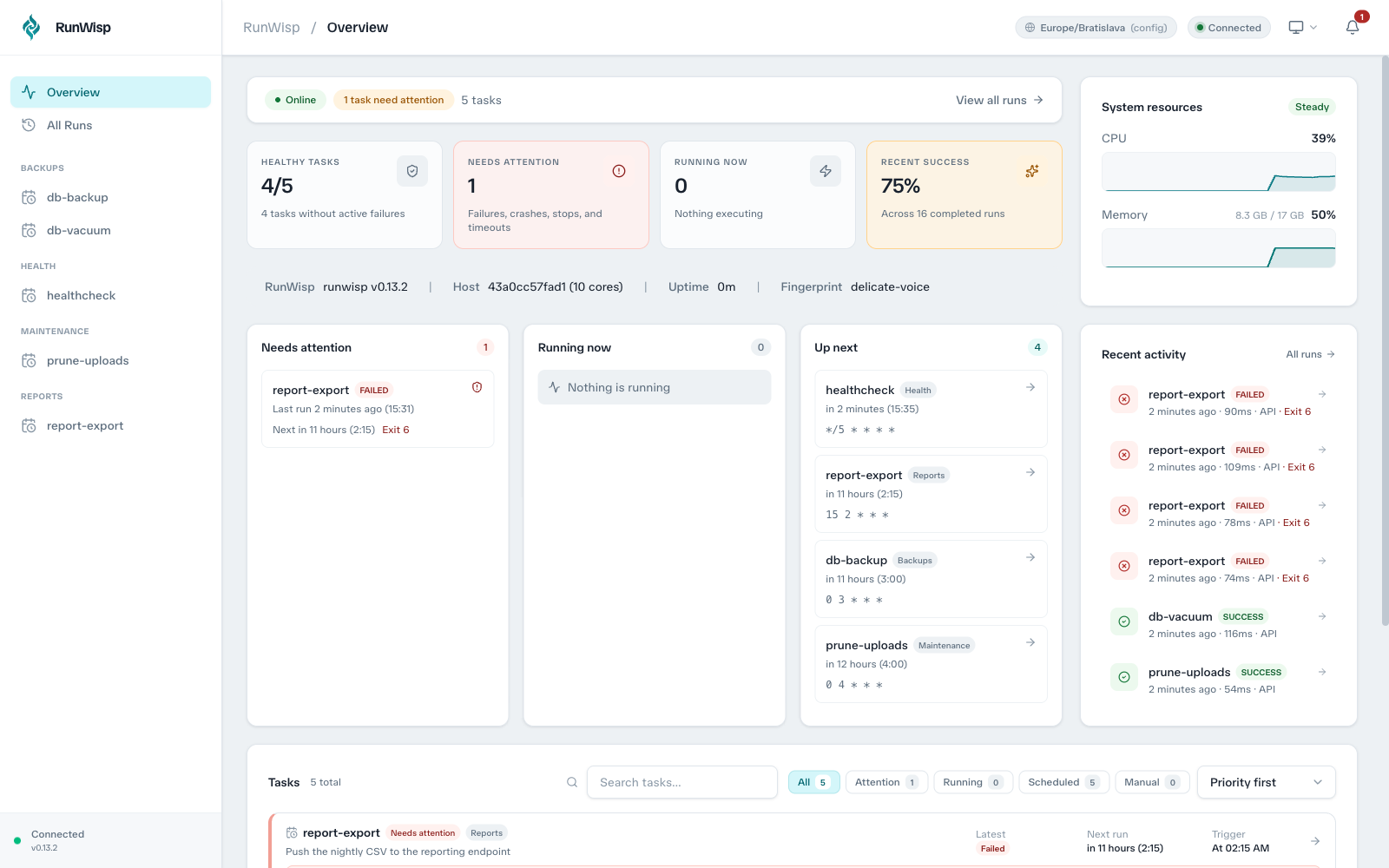
This is what RunWisp does. It’s a single Go binary (a scheduler, a supervisor, embedded SQLite, and the dashboard, all in one image) and it drops into a compose file like any other service. Here’s the stack from this article, running:
The setup
Say you have a boring three-service stack: nginx, Postgres, and whatever your app is.
Add a fourth service. RunWisp needs the Docker CLI to reach your other containers, and the official image is a deliberately tiny Alpine (busybox plus the binary, about 14 MB compressed), so build a one-line image on top of it:
# docker/runwisp.Dockerfile
FROM runwisp/runwisp:latest
RUN apk add --no-cache docker-cli docker-cli-compose curl
Then the service itself:
# docker-compose.yml
services:
    runwisp:
        build:
            dockerfile: docker/runwisp.Dockerfile
        container_name: acme-runwisp
        restart: unless-stopped
        ports:
            - "9477:9477"
        environment:
            - RUNWISP_PASSWORD=change-me
            - RUNWISP_SOCKET=/var/lib/runwisp/runwisp.sock
        command: runwisp daemon -c /etc/runwisp/runwisp.toml --data /var/lib/runwisp --host 0.0.0.0
        volumes:
            - ./runwisp.toml:/etc/runwisp/runwisp.toml:ro
            - /var/run/docker.sock:/var/run/docker.sock
            - backups:/backups
            - runwisp-data:/var/lib/runwisp

volumes:
    backups:
    runwisp-data:
A few of those lines are load-bearing, so:
command: spells out the config path, the data directory, and the bind address instead of relying
on the image defaults. Being explicit here is version-proof and it makes the compose file readable
six months from now, which is the actual audience.
--host 0.0.0.0 is required or the port mapping reaches nothing. The daemon binds 127.0.0.1 by
default, and inside a container that means “nobody.”
RUNWISP_SOCKET points at a path on the persistent volume. That’s what the container’s own
HEALTHCHECK uses to ask the daemon if it’s alive, and it’s what lets you run runwisp CLI
commands inside the container later.
runwisp-data is a named volume. That’s where SQLite and the per-run logs live, so if you skip it
your history dies with the container.
Then the jobs, in a file next to your compose file:
# runwisp.toml
[daemon]
tls     = "off"
timezone = "Europe/Bratislava"

[defaults]
keep_runs = 50

[tasks.db-backup]
group       = "Backups"
description = "Nightly pg_dump of the acme database"
cron        = "0 3 * * *"
timeout     = "30m"
on_overlap  = "skip"
run = """
docker exec acme-db pg_dump -U postgres acme | gzip > /backups/acme-$(date +%F).sql.gz
ls -lh /backups | tail -3
"""

[tasks.healthcheck]
group       = "Health"
description = "Is the site answering?"
cron        = "*/5 * * * *"
timeout     = "30s"
run         = "curl -fsS -o /dev/null -w 'http %{http_code} in %{time_total}s\n' http://web/"
The docker exec acme-db in the backup task assumes your Postgres service has container_name: acme-db in your compose file. Pin container names explicitly — compose-generated names (acme-db-1) change when you scale or recreate, and your tasks will break.
docker compose up -d, and:
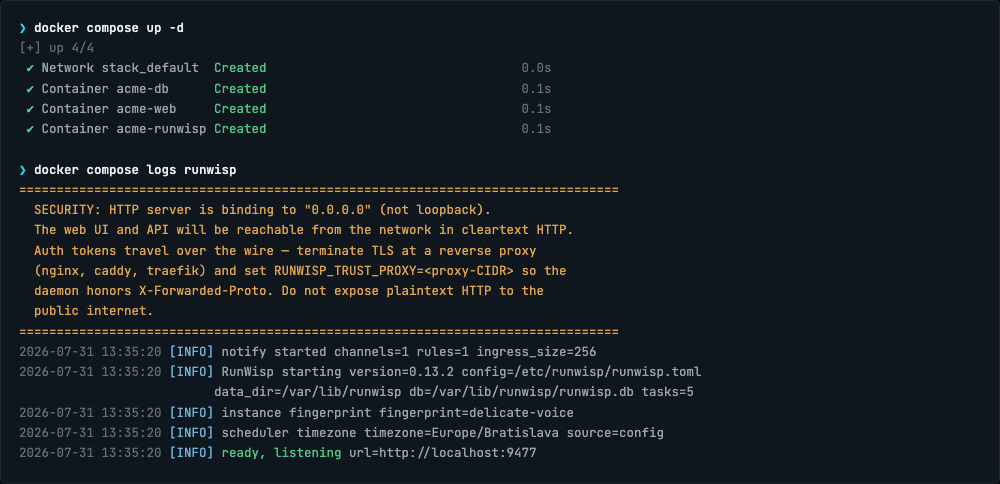
That security banner is not decoration. You just put a control panel that executes shell commands on
0.0.0.0. Keep the port on a private network, or put a reverse proxy in front of it, and read the
security notes before you do anything clever.
If you already have a crontab
Don’t retype it. Point the importer at it and it hands you TOML:
docker run --rm -v ./crontab.txt:/tmp/c:ro runwisp/runwisp:latest runwisp import cron /tmp/cIt also notices things. Feed it a crontab with MAILTO="" at the top and it tells you that RunWisp
doesn’t email job output and that you probably want a notifier instead. There’s a supervisord
importer too.
Reaching your other containers
This is the part every other article skips, and it’s the whole game. RunWisp runs /bin/sh -c
inside its own container. If your run = calls pg_dump, then pg_dump has to be reachable
from there. Two ways to do that.
Exec into a container that’s already running. This is what you want for anything that belongs to
a live app (php artisan, manage.py, psql, a rake task):
[tasks.db-vacuum]
cron = "30 4 * * 0"
run  = "docker exec acme-db psql -U postgres -d acme -c 'VACUUM ANALYZE'"
Two footguns here. Never pass -it (there’s no TTY, so it just errors out), and pin
container_name: in your compose file, because compose-generated names change out from under you
the moment someone scales a service. Note that plain docker exec has no -T flag (that one
belongs to docker compose exec), which is an easy five minutes to lose.
Run a compose service as a one-shot container. If the job is already defined as a service in
your compose file (a backup or migrate image that runs and exits), point at it directly and skip
the shell entirely:
[tasks.nightly-backup]
cron            = "0 3 * * *"
compose_file    = "/etc/runwisp/docker-compose.yml"
compose_service = "backup"
That runs docker compose run --rm, so you get a fresh container per firing and nothing left behind
when a timeout kills one. Two things to know. The compose file has to be mounted into the RunWisp
container (paths resolve inside it, not on the host), and the run gets its own Compose project, so
the container comes up on a fresh network where db does not resolve. Fine for a job that’s
self-contained. Not fine for one that needs to talk to the rest of your stack.
When it does need the stack, name the project yourself and shell out:
[tasks.nightly-backup]
cron = "0 3 * * *"
run  = "docker compose -f /etc/runwisp/docker-compose.yml -p acme run --rm backup"
-p acme is the Compose project name (the one in docker compose ls, which defaults to the
directory holding your compose file). Get it wrong and you’ll spend a while wondering why a hostname
that works everywhere else suddenly doesn’t resolve.
If you write your own docker run in a task, add --rm yourself. Without it, a timeout leaves a
stopped container behind every single night, and those pile up quietly until a disk alert wakes you
up.
Either way you need /var/run/docker.sock mounted, and that deserves one honest sentence: the
Docker socket is effectively root on the host. A task can start a privileged container. Your TOML is
written by you, so this is usually fine, but it’s a decision and not a detail.
The part you actually wanted
Job fails. Here’s what that looks like instead of an unread mail spool:
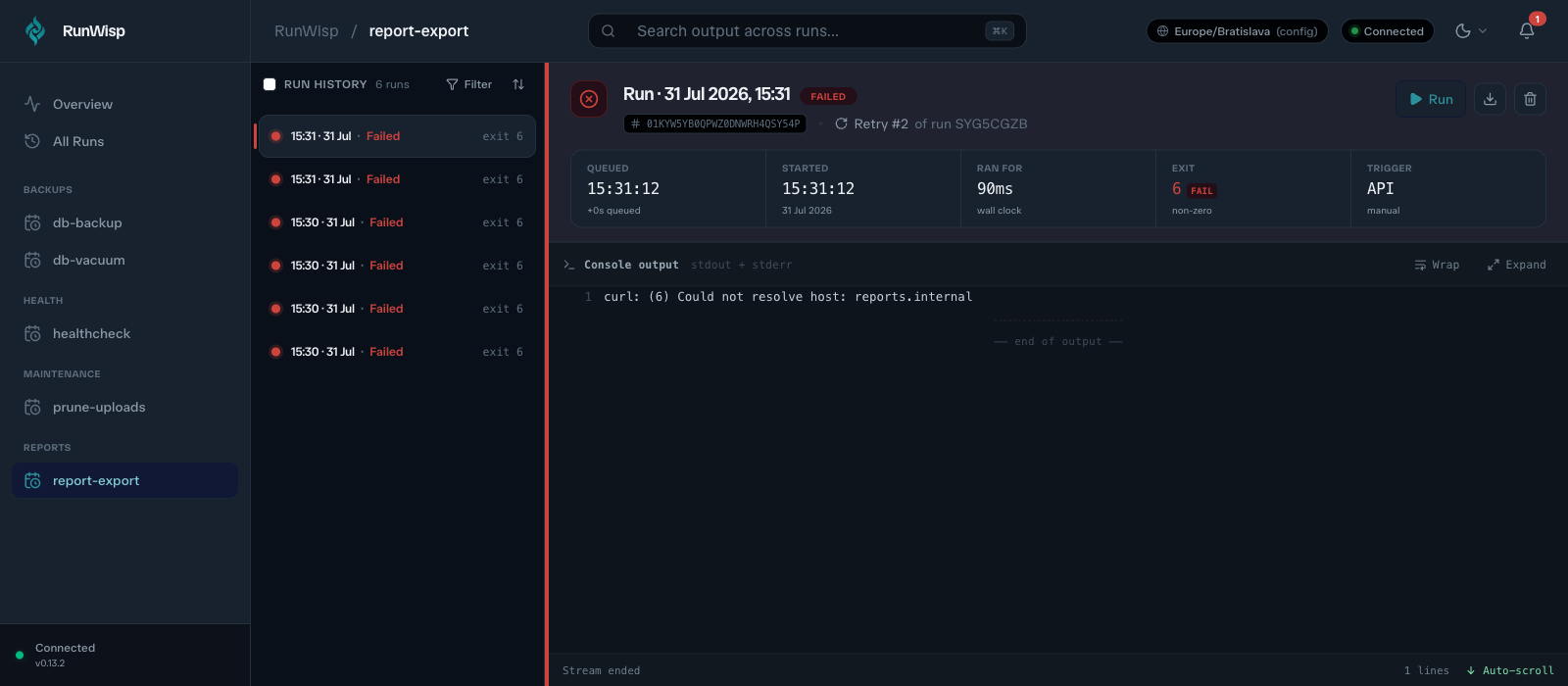
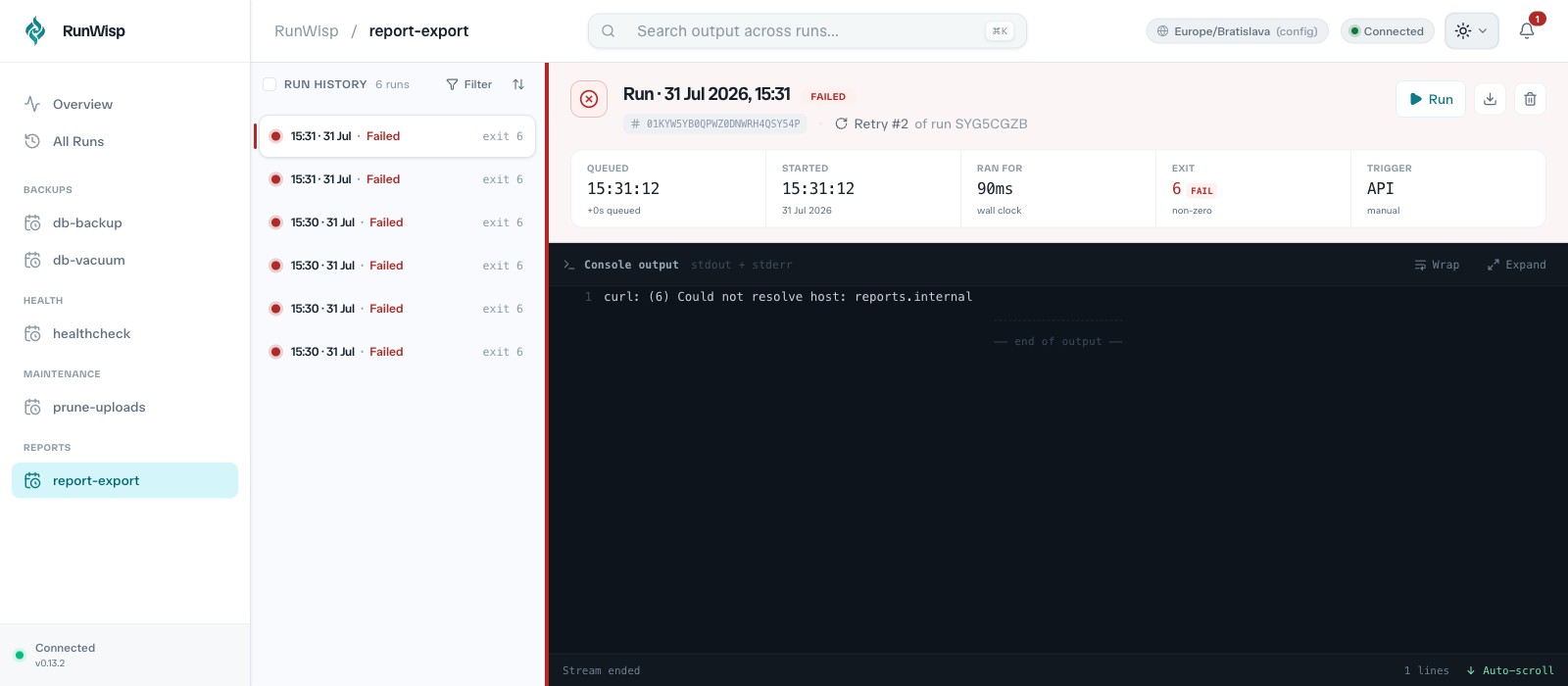
Exit 6, ran for 90ms, this was retry #2, and the reason is right there:
curl: (6) Could not resolve host: reports.internal. Somebody renamed a service. You knew that in
about four seconds instead of on Monday.
Retries and alerts are per-task:
[[notifier]]
id          = "slack-ops"
type        = "slack"
webhook_url = "${SLACK_WEBHOOK_URL}"

[tasks.report-export]
cron              = "15 2 * * *"
retry_attempts    = 2
retry_delay       = "10s"
retry_backoff     = "exponential"
notify            = ["slack-ops"]
run               = "/usr/local/bin/export-report.sh"
Slack, Discord, Telegram, SMTP, and a generic webhook all ship in the binary. There’s also an in-app bell that needs no configuration at all, which is the one you’ll actually use at first.
Six things that will bite you
Your container is in UTC. So cron = "0 3 * * *" means 3 AM UTC, not 3 AM where you live. Set
[daemon] timezone (or timezone on a single task) and check the chip in the dashboard header,
which shows the resolved zone and where it came from.
Missed firings come back. catch_up defaults to 1, so if you docker compose down to
deploy at 02:55 and come back at 03:10, that backup runs when the daemon starts. Usually what you
want for a backup. Definitely not what you want for a job that posts to a customer-facing channel.
Set catch_up = 0 on those. Host cron just loses the firing, so this one surprises people.
Editing the TOML does nothing on its own. There’s no file watcher, on purpose. Run
docker compose exec runwisp runwisp reload -c /etc/runwisp/runwisp.toml --data /var/lib/runwisp
and it prints a diff of what changed. Pass both flags or it goes looking for a daemon in the wrong
place and tells you nothing is running. It validates first, so a typo gets rejected and the running
jobs carry on untouched rather than half-applying.
The base image has almost nothing in it. No bash, no curl, no pg_dump, no python. That’s the
point (it keeps the image small), but it means apk add whatever your tasks need, or exec into a
container that already has it.
timeout can’t reach inside a docker exec. Docker has no way to cancel an exec, so a timeout
kills RunWisp’s local client while the process inside the container keeps going. If the job could
hang, bound it on the inside too: docker exec acme-db timeout 300 pg_dump ….
Long jobs overlap. A */5 job that sometimes takes six minutes will queue up behind itself, and
on_overlap defaults to queue for tasks. Use skip for healthchecks and backups, where a late run
is worthless.
When you shouldn’t do this
More than one host, or Swarm, or Kubernetes: this is a single-host tool by design, no clustering and
no leader election. Use a CronJob and keep your life simple.
Jobs that depend on other jobs: RunWisp tasks are independent units and it is not a DAG engine. Reach for Dagu or Airflow.
Already running Ofelia and happy with it: honestly, three labels is hard to beat for pure scheduling. The trade you’re making is history, retries, captured output, and alerting. If you don’t need those, you don’t need this. We wrote the whole comparison out in RunWisp vs Ofelia.
The short version
services:
    runwisp:
        image: runwisp/runwisp:latest
        ports: ["9477:9477"]
        environment:
            - RUNWISP_PASSWORD=change-me
            - RUNWISP_SOCKET=/var/lib/runwisp/runwisp.sock
        command: runwisp daemon -c /etc/runwisp/runwisp.toml --data /var/lib/runwisp --host 0.0.0.0
        volumes:
            - ./runwisp.toml:/etc/runwisp/runwisp.toml:ro
            - /var/run/docker.sock:/var/run/docker.sock
            - runwisp-data:/var/lib/runwisp

volumes:
    runwisp-data:
Add apk add docker-cli on top if your jobs need to reach sibling containers, write your schedules
in runwisp.toml, open :9477.
The quick start has the non-Docker install, the configuration reference has every key, and the code is on GitHub. It’s stable at 1.0 and GPL 3.0. RunWisp follows semver, but read the changelog before you upgrade.
Common questions
How do I run a cron job inside a docker-compose service?
Should cron run on the host or inside a container?
Why does my containerized scheduler's web UI refuse connections?
What timezone do cron jobs use in Docker?
What happens to a scheduled job if the container is down when it should fire?
Do I need to restart the container after editing the config?
Read next
-
Your 02:30 cron job might run twice on October 25
Or not at all next March. We mapped every clock change in 418 time zones and tested six schedulers: which cron lines break, where, and a 30-second check for your own box.
-
Why one binary
RunWisp embeds SQLite, a web dashboard, and a TUI into a single static Go binary. Here's why, and what it costs.