Windows Task Scheduler alternatives for Linux: cron, systemd timers, KCron or a web UI
Linux has no single Task Scheduler. cron schedules, systemd timers cover most of its Settings tab, KCron gives cron a desktop editor, and a dashboard like RunWisp adds run history. Every Task Scheduler option mapped to its Linux equivalent, with the gaps.
11 min read
If you’ve set up scheduled tasks on Windows, you know the drill: open Task Scheduler, Create Task, fill in five tabs, and later check the History tab and the Last Run Result column to see if it worked. Then you move a script to a Linux server and look for the same thing. There isn’t one.
Linux splits Task Scheduler into pieces. cron does the scheduling and little else. systemd timers cover most of the Settings tab. KCron gives cron a desktop editor. Run history with output isn’t built in anywhere, which is where dashboards come in. This post maps every Task Scheduler option to where it lives on Linux, using one job: a backup script that runs at 03:00 every night.
Short answer
For an unattended script on a server, use a systemd timer. It’s on every mainstream
distribution, and it has an equivalent for most of Task Scheduler’s options: missed-run catch-up
(Persistent=true), a time limit (TimeoutStartSec=), restarts on failure, a random delay, a
run-as user, and systemctl list-timers as the task list. Use cron (crontab -e) when you
want one line and nothing else. If you’re on a KDE desktop and want forms instead of syntax,
KCron edits your crontab. If you want a browser page that lists tasks with Run now and Pause
buttons and keeps every run’s output and exit code, RunWisp (an open-source cron replacement that
ships as a single binary) does that for Linux and macOS servers, with the tasks written in a TOML
file. Details below.
Task Scheduler’s tabs, translated
Each row is a Task Scheduler option and how you get it with each tool. “Script” means you write it yourself in the job’s command.
| Task Scheduler | cron | systemd timer | RunWisp |
|---|---|---|---|
| Trigger: daily, weekly, monthly | 0 3 * * * |
OnCalendar=*-*-* 03:00 |
cron = "0 3 * * *" |
| Trigger: At startup | @reboot |
OnBootSec= or a WantedBy= service |
run_on_start = "boot" |
| Trigger: At log on | ✗ | user service, WantedBy=default.target |
✗ |
| Trigger: On idle, On workstation lock | ✗ | ✗ | ✗ |
| Trigger: On an event | ✗ | .path units, for file changes only |
✗ |
| Repeat task every… | */15 * * * * |
OnCalendar=*:0/15 |
cron = "*/15 * * * *" |
| Delay task for up to (random delay) | script (sleep), or cronie’s RANDOM_DELAY |
RandomizedDelaySec= |
jitter |
| Run whether user is logged on or not | ✓ always | ✓ system timers; user timers need linger | ✓ always |
| Run as another user | that user’s crontab | User= |
user (daemon runs as root) |
| Wake the computer to run this task | ✗ | WakeSystem=true |
✗ |
| Start only if on AC power | script | ConditionACPower=true |
script |
| Run task as soon as possible after a missed start | anacron, daily at most | Persistent=true |
catch_up (default 1) |
| Stop the task if it runs longer than | script (timeout 3h) |
TimeoutStartSec= |
timeout |
| If the task fails, restart every… | script | Restart=on-failure + a start limit |
retry_attempts, retry_delay |
| If already running: do not start a new one | script (flock -n) |
✓ default | on_overlap = "skip" |
| If already running: queue a new instance | script (flock) |
✗ | on_overlap = "queue" (default) |
| Run (on demand) | run the command yourself | systemctl start backup.service |
Run now button, runwisp run |
| Disable | comment the line out | systemctl disable --now backup.timer |
Pause button, runwisp pause |
| Task list with next run time | crontab -l, no times |
systemctl list-timers |
web UI, TUI, runwisp status |
| History tab, Last Run Result | ✗ (syslog logs the start only) | journalctl -u, systemctl status |
every run, its output, exit code |
| Create the task in a GUI | KCron (KDE) | ✗ | ✗ (TOML file) |
The rows with ✗ in every column are real gaps. Linux has no idle trigger, no lock or unlock trigger, and no general “on this log event” trigger for scheduled jobs. If your Windows task depends on one of those, you’ll be writing a script that watches for it.
cron: the one-liner
This Windows task:
schtasks /create /sc daily /st 03:00 /tn backup /tr "C:\scripts\backup.cmd"is one line in crontab -e on Linux:
0 3 * * * /usr/local/bin/backup.sh >> /var/log/backup.log 2>&1Five fields: minute, hour, day of month, month, day of week. The job runs as whoever owns the
crontab, whether or not they’re logged in. crontab -l lists your jobs, sudo crontab -u alice -l
lists Alice’s, and /etc/cron.d/ holds system jobs with a user column.
What cron leaves out, compared with Task Scheduler:
- No Last Run Result. cron starts the job and forgets it. The system log says the job
started, not whether it worked. The
>> /var/log/backup.log 2>&1above is how you keep its output; where cron logs go covers the rest. - A missed run is gone. If the machine was off at 03:00, the job waits until tomorrow. anacron catches up daily, weekly and monthly jobs on laptops, with a day as its smallest step.
- Two copies can run at once. cron starts the job again even if yesterday’s is still running.
flock -nin front of the command is the fix; stopping overlapping cron jobs shows it. - No time limit, no restart. You add
timeout 3hin front of the command and write the retry loop yourself. Timing out a cron job has the details. - A different environment. A job that works in your terminal and fails in cron is usually
missing a
PATHentry or an environment variable. Cron job not running? goes through the list.
For a few jobs on a machine you look at often, that’s fine. A Windows admin will miss the History tab within a week.
systemd timers: the closest match
A systemd timer is two files: a .service that says what to run and how, and a .timer that says
when. The split maps well onto Task Scheduler, where the service is the Action and Settings tabs
and the timer is the Triggers tab:
# /etc/systemd/system/backup.service
[Unit]
Description=Nightly backup
StartLimitIntervalSec=1h
StartLimitBurst=2

[Service]
Type=oneshot
User=backup
ExecStart=/usr/local/bin/backup.sh
TimeoutStartSec=3h
Restart=on-failure
RestartSec=5min
# /etc/systemd/system/backup.timer
[Unit]
Description=Run backup.service every night
[Timer]
OnCalendar=*-*-* 03:00
RandomizedDelaySec=10min
Persistent=true
[Install]
WantedBy=timers.targetsudo systemctl daemon-reload
sudo systemctl enable --now backup.timerThat one job has, from top to bottom: run as user backup, stop the run after three hours, retry
once five minutes after a failure (the start limit is what stops it at one retry; without
it, a failing job restarts every five minutes forever), start at a random time between 03:00 and 03:10, and run once at boot
if the machine was off at 03:00. Add WakeSystem=true to the timer to wake a sleeping machine for
it, if its hardware supports waking on a timer.
The everyday Task Scheduler clicks, as commands:
| In Task Scheduler | With systemd |
|---|---|
| Look at all tasks | systemctl list-timers (next run, last run) |
| Run | sudo systemctl start backup.service |
| End | sudo systemctl stop backup.service |
| Disable | sudo systemctl disable --now backup.timer |
| Last Run Result | systemctl status backup.service |
| History tab | journalctl -u backup.service |
| Test a schedule | systemd-analyze calendar 'Mon..Fri 09:30' |
systemctl start backup.service runs the job exactly as the timer would, with the same user and
environment. That’s an improvement on cron, where running the command yourself isn’t the same
thing.
What to know before you switch:
- System timer or user timer. Units in
/etc/systemd/systemrun whether anyone is logged in. Units in~/.config/systemd/user(managed withsystemctl --user) run only while you have a session, unless you’ve runsudo loginctl enable-linger yourname. That’s Task Scheduler’s “Run only when user is logged on”, and it catches people out. - A running job blocks the next one. If last night’s backup is still running at 03:00, the timer leaves it alone and starts nothing, like Task Scheduler’s default “Do not start a new instance”. There’s no queue or parallel option.
- Failures are quiet by default. The History tab doesn’t email you on Windows either, but here
you set it up with
OnFailure=. systemd timer email on failure has a handler you can copy. - Two files per job. Ten jobs are twenty files. For a quick one-off,
systemd-run --on-calendar='*-*-* 03:00' /usr/local/bin/backup.shcreates a temporary timer without any files, and it’s gone after a reboot.
RunWisp vs systemd timers compares the two in more depth.
KCron: a desktop editor for cron
If the thing you miss is the Create Task dialog, KDE has KCron, in System Settings under Task Scheduler. It lists your crontab (and the system one, with admin rights), and creating a task is a form: a command, a comment, and checkboxes for minutes, hours, days and months. It’s maintained and released with KDE’s apps.
KCron edits cron, so it has all of cron’s limits from above: no history, no output, no timeouts. It’s the right tool on a KDE desktop where you’d otherwise look up cron syntax every time. On a server there’s no desktop to run it on, and GNOME has no maintained equivalent.
A related trap: a cron job or system timer that opens a window usually fails, because it runs outside your graphical session and doesn’t know about your display. If the task is “open this app every morning”, a systemd user timer is the better fit, since on most current GNOME and KDE setups the user manager knows your session’s display.
RunWisp: the History tab in a browser
RunWisp (our project, so weigh accordingly) is an open-source cron replacement that ships as a single binary, with a web UI and a terminal UI built in. It’s for the server case: unattended scripts on a VPS, a home server or a Pi, where you want to see what ran without SSHing in and reading logs.
The same backup job, with the same settings as the systemd example:
# runwisp.toml
[tasks.backup]
run            = "/usr/local/bin/backup.sh"
cron           = "0 3 * * *"
user           = "backup"
timeout        = "3h"
retry_attempts = 1
retry_delay    = "5m"
jitter         = "10m"
on_overlap     = "skip"
catch_up isn’t there because it defaults to running the most recent missed start once, like
Persistent=true. Then sudo runwisp service install starts the daemon at boot, and the web UI
is on port 9477:
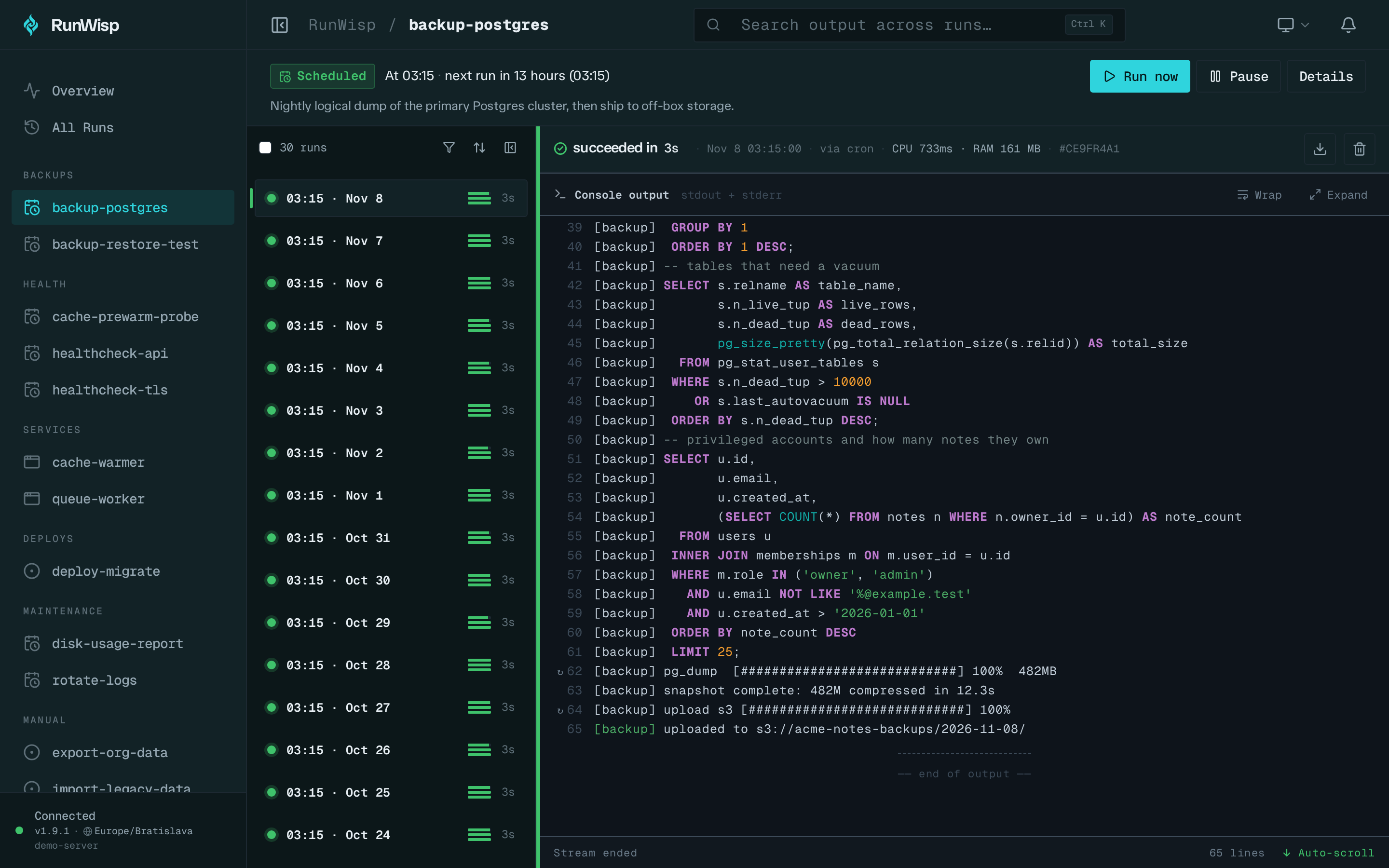
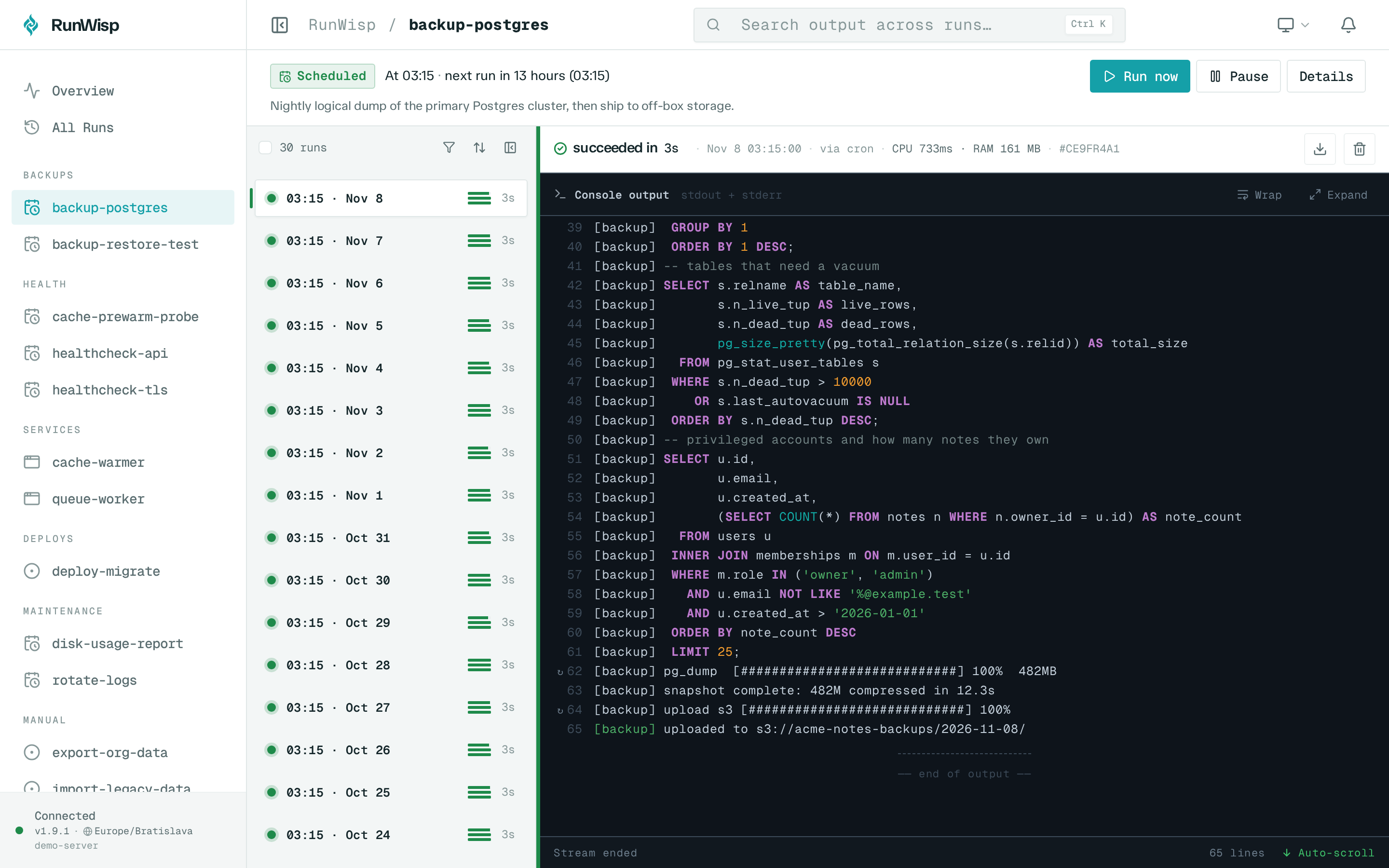
What a Task Scheduler user will recognise:
- A task list with each task’s schedule, next run and health, grouped however you like.
- Run now and Pause, the equivalents of Run and Disable. A pause survives restarts.
- A History tab that keeps the output. Every run has its exit code, duration, what triggered it and everything it printed, kept until your retention settings delete it. Runs can be filtered by status, date or exit code.
- “Queue a new instance”, which systemd doesn’t have, is the default (
on_overlap = "queue");skipandkillcover the other two choices. - Alerts to email, Slack, Discord, Telegram, ntfy and others when a run fails, times out or was missed while the daemon was down, which Task Scheduler never did.
If you already have a crontab, crontab -l | runwisp import cron prints it as RunWisp tasks to
start from. The web UI tour shows the
other pages.
The limits, honestly:
- You don’t create tasks in the UI. Tasks are written in
runwisp.tomland loaded withrunwisp reload. The UI runs, pauses and stops them, and the rest is read-only. If you want a New Task dialog, this isn’t it. - Fewer triggers than Windows. Schedules,
@everyintervals, boot, manual runs and HTTP hooks. No log on, idle, lock or event triggers, no wake from sleep, no AC power condition. - It runs commands, not desktop apps. Output goes to the browser, not to a window on your screen.
- No Windows build. It runs on Linux and macOS.
- It’s a daemon. If RunWisp is down, nothing runs (missed runs alert when it comes back). cron and systemd are already running on your machine.
- Running as another user needs a root daemon.
user =only works when the daemon runs as root, likeUser=in a system unit.
Which one to use
- A KDE desktop, a few personal jobs: KCron.
- One or two jobs on a server, and you’ll check on them: cron, with
flock,timeoutand output redirected to a file. - Jobs that need Task Scheduler’s Settings tab (catch-up, time limits, retries, run-as): systemd
timers. They’re already installed, and
systemctl list-timersis your task list. - An idle, lock or event trigger: nothing on this list does it. Write a small watcher, or keep that task on Windows.
- Many jobs on a server, and you want the History tab back with each run’s output, plus alerts: RunWisp. The quick start takes a few minutes, the cron migration guide covers moving an existing crontab, and the code is on GitHub.
Common questions
What is the Linux equivalent of Windows Task Scheduler?
Is there a GUI task scheduler for Linux?
How do I run a script at startup on Linux, like a Task Scheduler At startup trigger?
How do I make a Linux scheduled task run when I'm not logged in?
Is there a Linux task scheduler with a web UI that shows run history and output?
Read next
-
Run cron jobs as a non-root user in Docker, without setuid
USER app doesn't make Debian cron an unprivileged scheduler. Two complete setups with Supercronic or RunWisp, plus the UID, config and writable-volume checks that stop permission errors.
-
systemd timer email on failure: an OnFailure= unit that mails the failed run's log
How to get an email when a systemd timer's service fails: a template OnFailure= unit, msmtp as sendmail, and only that run's journal lines via $MONITOR_INVOCATION_ID. Tested on systemd 259 with timeouts, SIGKILL, Restart=, skipped conditions and a shared handler.