Where are cron logs? And why your job's output isn't in them
Cron logs to the journal, /var/log/syslog, /var/log/cron or /var/log/messages, depending on the distro. We ran the same failing job on six of them. None logged its exit code, and two threw its output away.
9 min read
You want to know why last night’s backup didn’t run. You type grep CRON /var/log/syslog and get
No such file or directory, or this:
CRON[82]: (root) CMD (/usr/local/bin/backup.sh)
CRON[80]: (CRON) info (No MTA installed, discarding output)
Cron logged that it started the job, and that it threw away whatever the job printed. It never says how the job ended. Where cron logs and how much depends on the distro, so we ran the same job on six of them: one line to stdout, one to stderr, exit 3, like a backup whose database is down.
Short answer
- Any systemd box: the journal.
journalctl -t CRONon Debian and Ubuntu,journalctl -t CRONDon Fedora, RHEL and Arch. On Debian 12+ and Arch that’s the only place. - Ubuntu, or Debian with rsyslog:
/var/log/syslog. - RHEL, AlmaLinux, Rocky, Fedora Server:
/var/log/cron. - Alpine:
/var/log/messages.
That log shows a job started. The job’s output is only in it on cronie distros, and the exit code isn’t in it anywhere. To keep both, redirect the output in the crontab line and wrap the job to log its exit code, or run it under something that records runs: a systemd timer, or RunWisp, an open-source cron replacement that keeps every run’s output and exit code from three lines of config per job. Both setups are below.
| Cron | Cron’s own log | Job’s stdout and stderr | Exit code | |
|---|---|---|---|---|
| Ubuntu 26.04 | Debian cron | journal + /var/log/syslog | ✗ discarded | -L 4 only |
| Debian 13 | Debian cron | journal only | mailed to /var/mail, or discarded | -L 4 only |
| AlmaLinux 10 | cronie | journal + /var/log/cron | ✓ CMDOUT lines | ✗ |
| Fedora 44 | cronie | journal + /var/log/cron | ✓ CMDOUT lines | ✗ |
| Arch | cronie | journal only | ✓ CMDOUT lines | ✗ |
| Alpine 3.24 | BusyBox crond | /var/log/messages | ✗ discarded, not logged | ✗ |
| RunWisp 1.7 (ours) | replaces cron | Web UI, TUI, runwisp logs | ✓ one log file per run | ✓ per run |
Find it
On systemd, ask the journal for the job lines by name. A name that doesn’t exist matches nothing, so this works on all five systemd distros above:
$ journalctl -t CRON -t CROND --since todayAdd -g backup.sh to narrow it to one job. Without systemd, grep -i cron the files from the short
answer.
Most guides say journalctl -u crond. On Fedora that showed only the daemon starting up. The job
lines were there, filed under session-c17.scope, session-c19.scope and so on, because Fedora’s
cron PAM config opens a login session for every job. AlmaLinux ships the same rule. -t CROND
matches the name the lines were logged under, so it finds them either way.
What each cron logs, and what to turn on
Debian and Ubuntu log a CMD line per job and, with no mail server, the “discarding output”
line. Set EXTRA_OPTS="-L 15" in /etc/default/cron and restart cron, and failures get the only
exit code any of these six crons will log:
CRON[125]: (CRON) error (grandchild #127 failed with exit status 3)Debian 13 has no syslog daemon until you apt install rsyslog, and then you also get
/var/log/cron.log. Ubuntu ships that rule commented out in /etc/rsyslog.d/50-default.conf.
cronie (RHEL, Fedora, Arch) logs the most:
CROND[50]: (root) CMD (/usr/local/bin/backup.sh)
CROND[46]: (root) CMDOUT (backup: wrote 1204 rows)
CROND[46]: (root) CMDOUT (pg_dump: connection refused)
CROND[46]: (root) CMDEND (/usr/local/bin/backup.sh)
CMDEND doesn’t say the job failed, and there’s no option to make it. And the CMDOUT lines only
happen while there’s no /usr/sbin/sendmail. We added one on the Fedora box, and the next run’s
output went to root’s mailbox instead. So installing postfix for some other app quietly moves your
cron output. CRONDARGS=-s in /etc/sysconfig/crond keeps it in the log either way.
BusyBox crond (Alpine) logs USER root pid 242 cmd ... and nothing else, even at its most
verbose level. The output goes to its stdout, which OpenRC points at /dev/null.
Keep the output yourself
A log file
0 3 * * * /usr/local/bin/backup.sh >> /var/log/backup.log 2>&12>&1 has to come after the >>, or stderr still goes to cron’s mail. That keeps the output, but
the file has no timestamps, no run boundaries and no exit code, and nothing rotates it. A wrapper
fixes the first three. Save it as /usr/local/bin/cronlog:
#!/bin/sh
# usage: cronlog NAME COMMAND [ARGS...]
log="/var/log/cron-jobs/$1.log"
shift
{
    echo "=== $(date "+%F %T") start: $*"
    "$@"
    rc=$?
    echo "=== $(date "+%F %T") exit $rc"
} >> "$log" 2>&1
exit $rc
0 3 * * * /usr/local/bin/cronlog backup /usr/local/bin/backup.sh=== 2026-10-16 10:37:33 start: /usr/local/bin/backup.sh
backup: wrote 1204 rows
pg_dump: connection refused
=== 2026-10-16 10:37:33 exit 3It exits with the job’s code, so a || curl alert after it still fires. For rotation,
mkdir /var/log/cron-jobs and add /etc/logrotate.d/cron-jobs:
/var/log/cron-jobs/*.log {
    weekly
    rotate 8
    compress
    missingok
}
The journal
The journal already has timestamps, rotation and a size cap. Let systemd-cat run the job:
0 3 * * * systemd-cat -t backup /usr/local/bin/backup.sh || logger -t backup "exit $?"Then journalctl -t backup. systemd-cat exits with the job’s code, 3 in our test, so the
|| logger line records the failure. The version most answers give, backup.sh 2>&1 | logger,
exited 0: the pipe reports logger’s exit code, so neither cron nor your alert ever sees the job
fail.
In Docker
docker logs reads PID 1’s stdout and stderr, and cron jobs don’t write there. Debian’s cron as PID 1
showed nothing in podman logs until we redirected the job:
* * * * * /app/job.sh > /proc/1/fd/1 2>/proc/1/fd/2BusyBox crond -f is the exception: its jobs inherit its stdout, so their output already shows up.
For a whole compose stack, see Docker Compose cron jobs with a web UI.
Or run jobs under something that records runs
All of the above patches cron from the outside. Two schedulers keep the output and exit code themselves. Here’s the same nightly backup set up under each, and then a failure alert added to both.
systemd timers
A timer runs the job as a service, so systemd keeps its output in the journal and records how it ended.
1. The service, /etc/systemd/system/backup.service:
[Unit]
Description=Database backup

[Service]
Type=oneshot
ExecStart=/usr/local/bin/backup.sh
2. The timer, /etc/systemd/system/backup.timer. 0 3 * * * becomes:
[Unit]
Description=Run the database backup nightly

[Timer]
OnCalendar=*-*-* 03:00:00
AccuracySec=1s
Persistent=true

[Install]
WantedBy=timers.target
AccuracySec defaults to a minute, and our test timer set for :00 started at 10:57:38 and
10:58:04. Persistent=true runs a job missed while the box was off at the next boot. To translate
other cron lines, check each with systemd-analyze calendar '*:0/15'.
3. Load it, start it, and delete the line from your crontab:
$ sudo systemctl daemon-reload
$ sudo systemctl enable --now backup.timer
$ crontab -e
4. Reading it. systemctl status has the last run. For the ones before it, grep the journal for
systemd’s end-of-run lines, then pull one run’s output by its time:
$ systemctl status backup
× backup.service - Database backup
     Active: failed (Result: exit-code) since Fri 2026-10-16 10:58:04 UTC; 5s ago
TriggeredBy: ● backup.timer
   Main PID: 354 (code=exited, status=3)
$ journalctl -u backup -g "Finished|Failed to start"
Oct 16 10:57:38 web1 systemd[1]: Failed to start backup.service - Database backup.
Oct 16 10:58:04 web1 systemd[1]: Failed to start backup.service - Database backup.
$ journalctl -u backup --since 10:58 --until 10:59
Oct 16 10:58:04 web1 systemd[1]: Starting backup.service - Database backup...
Oct 16 10:58:04 web1 backup.sh[354]: pg_dump: dumping database app
Oct 16 10:58:04 web1 backup.sh[354]: pg_dump: error: connection refused
Oct 16 10:58:04 web1 systemd[1]: backup.service: Main process exited, code=exited, status=3/NOTIMPLEMENTED
Oct 16 10:58:04 web1 systemd[1]: backup.service: Failed with result 'exit-code'.
Steps 1 to 3 repeat for every line in your crontab. In return it’s already installed, needs nothing else running, and stops a job by killing its whole cgroup. More in RunWisp vs systemd timers.
RunWisp
RunWisp (our project, so weigh accordingly) is an open-source cron replacement that ships as a single binary. The same job:
1. Install it into /usr/local/bin, where sudo can find it:
$ curl -fsSL https://get.runwisp.com | sudo sh2. The job, /etc/runwisp/runwisp.toml:
[tasks.backup]
cron = "0 3 * * *"
run  = "/usr/local/bin/backup.sh"
The schedule stays a cron line. runwisp validate --explain prints it as “At 03:00” with the next
three run times.
3. Start it at boot, and delete the line from your crontab:
$ sudo runwisp service install
$ crontab -e
service install also generates a password for the web UI and prints it once. It’s kept in
/etc/systemd/system/runwisp.service.d/password.conf if you lose it.
4. Reading it. sudo runwisp logs backup prints the last run:
$ sudo runwisp logs backup
pg_dump: dumping database app
pg_dump: error: connection refused
[WARN] run failed task=backup run=01M525WSW1B8DYHAMG216JW34P exit=3 reason=failed dur=35ms
For every run, sudo runwisp tui works over SSH, or tunnel the web UI with
ssh -L 9477:localhost:9477 you@server and log in with that password:
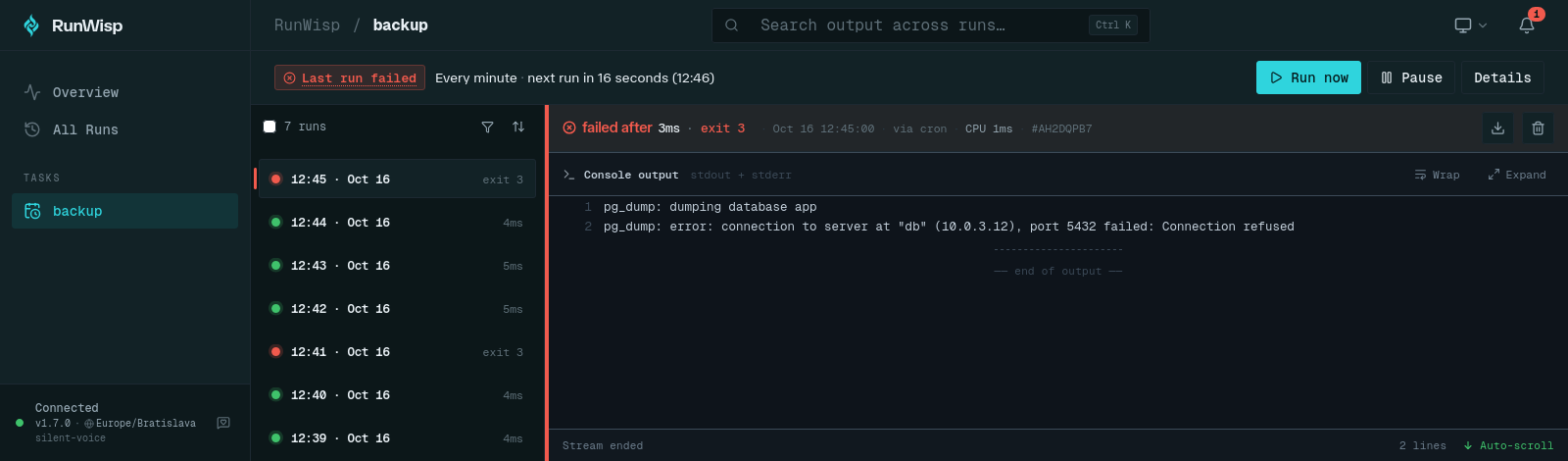
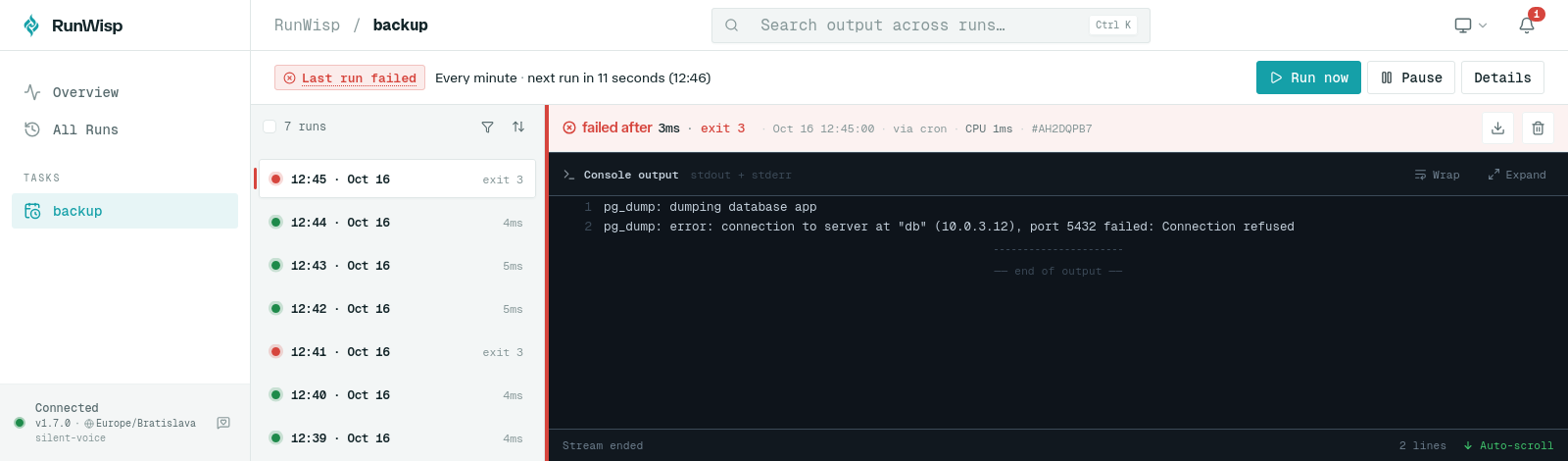
More jobs are three more lines each in the same file, then sudo runwisp reload. What you get
without configuring anything else:
- One log file per run, listed with its start time, duration and exit code.
- Search through the output of every run of a task at once.
- A size cap: each run’s log stops at 100 MB, keeping the newest output. Add
keep_for = "30d"to a task to delete its old runs. - Docker: the RunWisp image prints every job’s output to
docker compose logsasbackup | line.
The limits: old runs are kept until you set keep_runs or keep_for, logs stay on that machine’s
disk instead of going to Loki or ELK, and it’s one more service to keep running, which systemd
timers aren’t.
Adding a failure alert
Both examples use ntfy, a free, open-source push notification service. Install the
ntfy app on your phone and subscribe to a topic, which is just a name you make up. Anything posted to
https://ntfy.sh/<topic> then shows up as a notification. There’s no account and no password, so
anyone who knows the topic name can read it: pick one nobody will guess, like acme-ops-7f3k.
systemd needs a template unit that sends the message, written once,
/etc/systemd/system/[email protected]:
[Unit]
Description=Failure alert for %i

[Service]
Type=oneshot
ExecStart=/usr/bin/curl -fsS -d "%i failed on %H" https://ntfy.sh/acme-ops-7f3k
Then one line in the [Unit] section of every service that should alert, and a reload:
OnFailure=notify-failure@%n.service$ sudo systemctl daemon-reloadWhen backup.service fails, systemd starts [email protected], and your phone
shows backup.service failed on web1. Go to the journal for the output.
RunWisp needs the channel once, at the top of runwisp.toml, and one line on the task:
[notifiers.phone]
type  = "ntfy"
topic = "acme-ops-7f3k"

[tasks.backup]
cron   = "0 3 * * *"
run    = "/usr/local/bin/backup.sh"
notify = ["phone"]
$ sudo runwisp reloadThe alert names the task, its exit code and how long it ran. Slack, Discord, Telegram, email and
webhooks work the same way, with a different type; see the
notification docs.
Common questions
Where are cron logs on Ubuntu?
Where is the cron log on RHEL, Rocky, AlmaLinux or Fedora?
Why is there no /var/log/syslog on my server?
Does cron log the exit code of a job?
How do I see cron job output in Docker?
How can I see a history of every cron run with its output?
Read next
-
Ubuntu 26.04 Rust coreutils (uutils) vs GNU: what changes for cron and shell scripts
Which uutils commands behave differently from GNU coreutils on Ubuntu 26.04 and 26.10, tested on 567 commands: mkdir locks, mv and mtime, timeout, date and DST, df, chown. How to check which you have and how to use GNU instead.
-
Debian cron vs cronie vs BusyBox crond: CRON_TZ, /etc/cron.d, env vars and syntax compared
How cron differs on Ubuntu, Debian, Fedora, RHEL, Arch and Alpine: which crons support CRON_TZ, read /etc/cron.d, pass Docker env vars, handle a bad crontab line, and accept seconds, L, W and #. Tested on six distros.